Breaking News
Loading...

Recent Post

Tampilkan postingan dengan label SharePoint 2013. Tampilkan semua postingan
Kamis, 16 Oktober 2014
no image

Using Javascript and the ctx element within Display Templates

So as you know I love Display Templates, using in the Content Search web part.

I just found this awesome article, showing how to do some fantastic "Higher Grade" stuff with Display Templates.

When working with Display Templates you use a combination of HTML and JavaScript/JQuery to manipulate it into doing what you want it to do. The below link, shows some nice tricks, on working with the ctx elements and the Managed Property Mapping.

Check it out:
Useful JavaScript to know when working with SharePoint Display Templates (#SPC3000)
http://www.dotnetmafia.com/blogs/dotnettipoftheday/archive/2014/02/26/useful-javascript-for-working-with-sharepoint-display-templates-spc3000-spc14.aspx
no image

How to Create Custom Display Templates in SharePoint 2013, Content Search web parts

SharePoint 2013 display templates are the best thing since sliced bread - no, than slices cheeeese…

I have really falling in love with SharePoint all over again, using the Content Search Web Part. This now giving you the ability to show your content in any fabulous way you would like.

This video show you how to get started, check it out:
Display Template Overview
https://www.youtube.com/watch?v=yC4LZapFdfY
no image

Page Layouts, Page Templates and Display Templates

Are you getting confused between Page Layouts, Page Templates and Display Templates?

This article explains the SharePoint 2013 Page Model, for all to understand. It's also nice to send to users.

Check it out:
Overview of the SharePoint 2013 page model:
http://msdn.microsoft.com/en-us/library/office/jj191506(v=office.15).aspx
no image

Need a web friendly version of a picture in SharePoint?

SharePoint automatically creates web friendly version of your pictures within a Picture Library. I’m not talking about SharePoint 2013 Image Rendition, but completely OOTB vanilla SharePoint, and it has been doing it even a few versions back.

So, add a picture to your SharePoint sites, picture library.

Then have a look:

Original Picture:
{SharePoint Site}/{Picture Library Name}/MyNewPicture.png

Web Copy:
{SharePoint Site}/{Picture Library Name}/_w/MyNewPicture_png.jpg

Thumbnail:
{SharePoint Site}/{Picture Library Name}/_t/MyNewPicture_png.jpg
Kamis, 10 Juli 2014
no image

Opening a Page as modal window using JSOM in SharePoint 2013

There are many scenarios where we need to open custom pages or OOTB pages in a pop up. SharePoint provides an API to open the pages in pop up and in this post we will see how we can achieve the same using on the client side using JSOM

We will explore the following methods from the SharePoint 2013 client side library which will help us in opening the page as a dialog.

We will consider the following scenario when opening the page as a dialog:

  • How to open the page in a dialog
  • How to pass data to the dialog page
  • How to return parameters or data back to the calling page from the dialog page
First we will see how to open the page in a dialog window. In order to open the page in a dialog, first we need to set the dialog window properties such as

  • Dialog Window Title
  • URL of the page to be shown in dialog window
  • Width and height
  • Allow dialog to maximize
  • Allow dialog to close
  • Need callback from the dialog window to the parent window
  • Data for the dialog window that needs to be passed from the parent window
So, I have written a function in javascript with those parameters that can be called from the parent window. The below JavaScript code will show that information


We have written a function called openInDialog which can be called from the Parent page and to this method we are passing all the parameters such as title, width, height etc. that discussed above


Then we have created a variable called options which has to be a JSON object that needs to be passed to the SharePoint JavaScript function which we will discuss later


Ensure that you use the same key names in the options variable such as args, showClose, allowMaximize etc

Its always better to pass data in JSON format to the modal window

If we need callback from the dialog window, we need to set a property called dialogReturnValueCallback. To that property, we need to set a custom call back function that will be called when the user closes the dialog window


Here the closeDialogCallBack is a custom callback function that will be called when the user closes the dialog window. We will explore this custom callback function later in this post

To open the page in a dialog, we need to call a sharepoint function called showModalDialog which is defined in the namespace SP.UI.ModalDialog and this name space is present in the JS file sp.ui.dialog.js


To showModalDialog function, we are passing options as a parameter which we have created above

In the dialog window, we can access the data that is passed from the parent window as follows


dialogArgs contains the data that is passed from the parent window
Once the business is completed in the dialog window, the user will press OK or Cancel button in the dialog window.

Before clicking on OK or Cancel button, we need to prepare data that needs to be passed to the parent window. We will see how to prepare the data that needs to be passed to the parent windows


In the above code, we have created a javascript array and to this javascript array we are setting some data and we want to send this data to the parent window and the parent window can take some action based on the data that is sent from the dialog

There are two actions that can be done in the pop up either OK or Cancel. Here are the SharePoint functions for OK and Cancel click events

When the user click on "OK" button, we can call the below SharePoint function
 
SP.UI.ModalDialog.commonModalDialogClose(SP.UI.DialogResult.OK, popData);

When the user click on "Cancel" button, we can call the below SharePoint function

SP.UI.ModalDialog.commonModalDialogClose(SP.UI.DialogResult.cancel, popData);

 As you can see, we are passing popData javascript array to both ok and cancel button.

 commonModalDialogClose sharepoint function internally calls the callback function that we discussed earlier in this post.

In our case we have created a call back function called closeDialogCallBack and this will be called when we close the pop up


Senin, 05 Agustus 2013
Setup and Start the SharePoint 2013 User Profile Service (UPS)

Setup and Start the SharePoint 2013 User Profile Service (UPS)

Start the User Profile Service:

  1. Open "Central Administration"
  2. Login as the SharePoint Install account
    This account must have dbcreate and securityadmin server roles on the SQL Server  {SQL Server 2012 Name}
  3. Click “Manage services on server”, under “System Settings”
     photo UPS9.jpg
  4. Find "User Profile Service" 
  5. Click "Start", on the right 
     photo UPS17.jpg

Create the User Profile Service (UPS) Application:

  1. Open "Central Administration"
  2. Click “Manage service applications”, under “Application Management”
     photo Picture1-2.jpg
  3. Click "New"
     photo UPS2.jpg
  4. Select "User Profile Service Application"
     photo UPS3.jpg
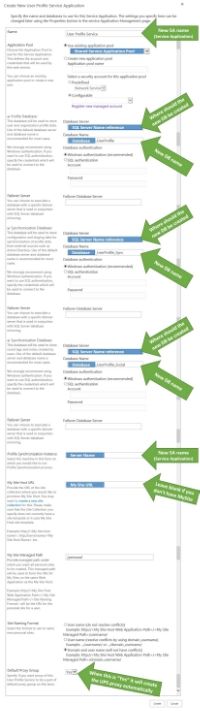
  5. Fill in the related fields
    (If I haven't mentioned the field, it has the default settings)

    a.  Name:  User Profile Service
    b.  Application Pool:  Use existing application pool:  Shared Services
     photo UPS51.jpg

    c.  Profile Database:
         i.  Database Server:  {SQL Server 2012 Name}
         ii. Database Name:  {Database}_UserProfile
     photo UPS52.jpg

    d.  Synchronization Database:
         i.  Database Server:  {SQL Server 2012 Name}
         ii. Database Name:  {Database}_UserProfile_Sync
     photo UPS53.jpg

    e.  Social Tagging Database:
         i.  Database Server:  {SQL Server 2012 Name}
         ii. Database Name:  {Database}_UserProfile_Social  
     photo UPS54.jpg

    f.  Profile Synchronization Instance: {SharePoint Server Name} (default - current server)
     photo UPS55.jpg
    f.  My Sites. If you don't have, in this example we done, you can leave it blank, as default.
     photo UPS56.jpg
  6. Click "Create"
     photo UPS6.jpg
  7. Click "OK"
  8. See full here: User Profile Service Application Settings

Start the User Profile Synchronization Service:

Make sure the SPFarm account has local admin access to the SharePoint Server the UPS synchronisation will be running on. This then needs to be removed once the synchronisation is complete.
  1. Open "Central Administration"
  2. Click “Manage services on server”, under “System Settings”
     photo UPS9.jpg
  3. Find "User Profile Synchronization Service"
  4. Click "Start", on the right
     photo UPS8.jpg
  5. Fill in the Share Point Farm account
     photo UPS10.jpg
  6. Click "OK"

Reset the IIS:

  1. Open "Command Prompt", as Administrator
  2. Type and enter:  iisreset
     photo UPS7.jpg
  3. Close "Command Prompt"

Create the Profile Synchronization Connection:

  1. Open "Central Administration"
  2. Click “Manage service applications”, under “Application Management”
     photo Picture1-2.jpg
  3. Find and Select "User Profile Service"
     photo UPS11.jpg
  4. Click "Configure Synchronization Connection", under Synchronization
     photo UPS12.jpg
  5. Click "Create New Connection"
     photo UPS14.jpg
  6. Fill in the related fields
    (If I haven't mentioned the field, i have left in the default settings.)

    a.  Connection Name:  User Profile Synchronisation
    b.  Forest name:  {DomainName.com} or {DomainName.local}
    c.  Account Name:  Share Point UPSync account
        This account must have "Directory replication rights" in AD (active directory)
    d.  Click "Populate Container"
     photo UPS15.jpg
    e.  Select the User Accounts you want to add
    f.  Click "OK"

Start the Profile Synchronization for the first time:

  1. Open "Central Administration"
  2. Click “Manage service applications”, under “Application Management”
     photo Picture1-2.jpg
  3. Find and Select "User Profile Service"
     photo UPS11.jpg
  4. Click "Start Profile Synchronization", under Synchronization
     photo UPS13.jpg
  5. Select "Start Full Synchronization"
     photo UPS16.jpg
  6. Click "OK"
    This will take a few minuets 
Rabu, 24 Juli 2013
no image

How to Update the SharePoint 2013 Term Store by Importing it from an Excel 2013 Spreadsheet

Changing your Region Settings

The first thing you need to do is make sure your region setting are formatted correctly. This is because the file format used by the SharePoint Term Store is a csv. This converts table using the “List separator” in your PC’s region settings. If you don’t set these first you have difficulty opening and converting the spreadsheet to and from a csv file format.

The csv extension literally stands for Comma Separated Values.

Change the “List separator” from a semi-colon to a comma

  1. Open “Control Panel”
  2. Click “Region” or “Region and Language”, depending on your Windows operation system
  3. Click “Additional settings…”
     photo Region1.jpg
  4. Change:
    a. Decimal symbol                .               (full stop)
    b. List separator                     ,               (comma)
     photo Region2.jpg
    Both need to change. It seems to conflict if you just change the “List separator” and not both. If they are both comma’s, the csv conversion returns semi-colon’s.
  5. Click “OK”
  6. Click “OK”

Import the csv sample template from SharePoint 2013 Term Store

  1. Open SharePoint 2013
  2. Click the cog (Site Actions), top right corner
  3. Select “Site Settings”
  4. Click “Term store management”, under “Site Administration”
  5. Select the Managed Metadata Service application, on the left tree view
     photo TermStore3.jpg
  6. Click “View a sample import file”, on the right (properties pane)
     photo TermStore2.jpg
  7. Click “Save”

Working on the Terms

  1. Open this file (ImportTermSet.csv) with Excel 2013.
    If all the region setting are correct, it will open correctly, in the correctly formatted columns.
     photo TermStore4.jpg
To see the raw csv, you can open it in Notepad.
For more on the Managed metadata input file format, here: http://technet.microsoft.com/en-us/library/ee424396.aspx

When creating your Managed Metadata terms store it is always better to plan what you are going to do and what they are going to be used for. TechNet has some nice articles on this: http://technet.microsoft.com/en-us/library/ee530389(v=office.15).aspx

Compare Excel spreadsheet with Term Store

What will the spreadsheet going to look like in the Term Store?

 photo TermStore5.jpg

 photo TermStore8.jpg


Save to csv

If you have competed creating the terms in Excel and have the spreadsheet in xlsx format and you want to re-save it to into csv format.
  1. Open Excel 2013
  2. Click "File" tab, on the Ribbon
  3. Select "Save As", on the left
  4. Click "Browse"
  5. Select the file type: CSV (Comma delimited) (*.csv)
     photo TermStore9.jpg
  6. Give the file a relative name
    e.g. ImportTermSetNew

Import csv to SharePoint 2013 Term Store

Remember permission. The authentication account which you use to access the Term Store Management Tool, must be listed as a "Term Store Administrator", or you will not be able to accomplish this task.
  1. Open SharePoint 2013
  2. Click the cog (Site Actions), top right corner
  3. Select “Site Settings”
  4. Click “Term store management”, under “Site Administration”
  5. Select the Managed Metadata Service application, on the left tree view
  6. On the left, in the tree view, select the “Term Group” you would like to upload to.
  7. Select “Import Term”
    e.g.: Test Term Group
     photo TermStore6.jpg
  8. Click “Browse”
  9. Choose the relevant csv file
    e.g.: ImportTermSetNew.csv
  10. Click “OK”
     photo TermStore7.jpg

Kamis, 18 Juli 2013
How to update the Content Type Hub URL

How to update the Content Type Hub URL

We recently moved our DEV SharePoint 2013 DB’s to our QA environment. We moved the main content DB, the managed metadata DB, and the content hub DB. Everything was recreated and moved over correctly. 

But when I went to change a content type in the Site Collection Content Type Hub, the content type appeared as “read only”. After some investigation I realised the “Managed Metadata Service” was still showing the old DEV Content Type Hub URL.

How to check the Content Type Hub URL:

  1. Open Central Administration
  2. Click “Manage service applications”, under “Application Management”
     photo Picture1-2.jpg
  3. Select “Managed Metadata” service (the first one). Click on the side, to select it, but not open it.
  4. Click “Properties”, in the Ribbon
     photo Picture2.jpg
  5. Scroll to the bottom, and confirm the Content Type Hub is the correct Content Type Hub URL

How to update the Content Type Hub URL:

  1. Goto the server (Server 2012) which hosts the SharePoint 2013 Central Administration.
  2. Open the “SharePoint 2013 Management Shell” as the Administrator
    a.  Open the Search
         i.  Hover over the bottom right corner
         ii. Click on the Search icon
    b.  Search for “SharePoint 2013 Management Shell”
    c.  Right click “SharePoint 2013 Management Shell”
    d.  Select “Run as Administrator”, at the bottom
  3. Run the script below:
    Set-SPMetadataServiceApplication -Identity "{Managed Metadata Service name}" -HubURI "{Content Type Hub URL}"
    Example:
    Set-SPMetadataServiceApplication -Identity "Managed Metadata" -HubURI "http://vm-sharepoint2013-qa-hub"
  4. Check the Content Type Hub URL is correct, see above section (How to check the Content Type Hub URL)

Now to edit the content type:

  1. Open the Content Type Hub (http://vm-sharepoint2013-qa-hub)
  2. Click the cog (Site Actions), top right corner
  3. Select “Site Settings”
  4. Click “Site content types”, under “Web Designer Galleries”
  5. Click on the Content Type you want to change
  6. Click “Advanced Settings”, under "Settings", near the top
     photo Picture3.jpg
  7. Select “No”, under “Read Only”
     photo Picture4.jpg
  8. Click “OK”
  9. Now change the Content Type as needed.
Jumat, 05 Juli 2013
Jumat, 28 Juni 2013
Deploying a WSP to SharePoint 2013

Deploying a WSP to SharePoint 2013

How to deploy a WSP to SharePoint Farm Solution library

This need to be done on the Server which host the SharePoint Central Administration.
  1. Add the WSP to the SharePoint Server
    1. The first thing you need to do is copy over the wsp deployment file. The best things to do is to create a deployment folder, where all the deployed files are kept.
    2. Copy over the deployment files to: c:\Deploy\WSP
  2. Add the WSP to the SharePoint Farm Solution library
    1. Open “SharePoint 2013 Management Shell “ as administrator
      a. Open the Search on Server 2012
      b. Search for “SharePoint 2013 Management Shell”
      c. Right click “SharePoint 2013 Management Shell”
      d. Select “Run as Administrator”
    2. Run this script: 
      Add-SPSolution "c:\Deploy\WSP\{file name}.wsp"  
  3. Deploy the WSP to the SharePoint Farm Solution library
    1. Open Central Administration
    2. Click “System Settings”
       photo Picture1.jpg
    3. Click “Manage farm solutions”, under “Farm Management”
       photo Picture103.jpg
    4. Click on the {file name}.wsp package
    5. Click “Deploy Solution”
       photo Picture106-1.jpg
    6. Deployment settings
      Deploy When: Now
      Deploy to: All content Web application
    7. Click “OK”

How to activate the WSP Feature on the Site Collection

  1. Activate the WSP Feature on the Site Collection
    1. Open the Root Site (the Site Collection)
    2. Click the cog, in the top right corner (Site Actions)
    3. Select “Site Settings”
    4. Click “Site collection features”, under “Site Collection Administrator”
    5. Go to {file name}
    6. Click “Activate”, to the right
Senin, 13 Mei 2013
no image

Edit and Display Panel within a SharePoint Page Layout

Edit Panel:

<PublishingWebControls:EditModePanel runat="server" PageDisplayMode="Display" SuppressTag="true"> 
<!-- Place edit panel section here --> 
</PublishingWebControls:EditModePanel> 

Display Panel:

<PublishingWebControls:EditModePanel runat="server" PageDisplayMode="Edit" SuppressTag="true"> 
<!-- Place display panel section here --> 
</PublishingWebControls:EditModePanel>

Remember to change the ID's to be different for the display panel and the edit panel
Selasa, 23 April 2013
no image

How to Update the web.config file to get the Image Rendition to work on SharePoint 2013

1.     Open the 2012 Server(s)
2.     Open C:\inetpub\wwwroot\wss\VirtualDirectories\[site]
3.     Make a backup copy of the web.config
4.     Open Search
5.     Hover over the bottom right of the screen.
6.     Click Search
7.     In the search box, search for Notepad
8.     On the left, right click on Notepad
9.     At the bottom of the screen, click on Run as administrator
10.     Click Yes
11.     Click File
12. Select Open 
13. Goto C:\inetpub\wwwroot\wss\VirtualDirectories\[site]
14. Select web.config
15. Click Open
16. Change the BlobCache settings
<BlobCache location="C:\BlobCache\14" path="\.(gif|jpg|jpeg|jpe|jfif|bmp|dib|tif|tiff|themedbmp|themedcss|themedgif|themedjpg|themedpng|ico|png|wdp|hdp|css|js|asf|avi|flv|m4v|mov|mp3|mp4|mpeg|mpg|rm|rmvb|wma|wmv|ogg|ogv|oga|webm|xap)$" maxSize="10" enabled="true" />
17.     Click File
18.     Select Save
19.     Close Notepad
Done :)
Quick Message
Press Esc to close
Copyright © 2013 Microsoft Office 365 All Right Reserved